What you will learn
- How a DEX differs from a centralised exchange (CEX)
- How to read a signature request and understand what you are confirming
- Why an “unlimited” permission is dangerous and how to limit it
- What margin, leverage and the liquidation price are
- How to disconnect a site and revoke permissions when you are done
What you need
- The completed lesson “Crypto wallets and self-custody”
- 15 minutes
- The DEX trainer: a practice exchange with no money and no keys
Key terms
- DEX
- A decentralised exchange. Trades run through smart contracts, and your funds stay in your wallet.
- CEX
- A centralised exchange: a company holds its customers’ funds in its own accounts.
- Token
- A digital asset on a blockchain, for example USDC.
- Permission (approve)
- The right for a contract to spend your tokens up to a stated amount.
- Leverage
- A multiplier on a position: it increases both profit and loss.
CEX and DEX
| CEX (regular exchange) | DEX | |
|---|---|---|
| Who holds the funds | The exchange, in its own accounts | You, in your wallet |
| How to get started | An account and identity verification | Connect a wallet |
| A mistaken transaction | Support can sometimes help | A signature cannot be undone |
| Main risks | Account freezes, exchange hacks | Fake sites, dangerous signatures and permissions |
Step by step
The orange numbers on the images match the numbers in the text. Tap an image to see it in full.
- 01
Check the site and connect your wallet
First check the site address (number 1): here it is dex-trainer.example. Fake exchanges copy the design but cannot copy the exact address.
Tap “Connect wallet” (number 2). The site will see only your address, not your keys or your phrase. The hint (number 3) reminds you of the key point: on a DEX the exchange does not hold your funds.
- Do not connect your wallet to a site you found through an ad or a link in a chat
- Do not enter your recovery phrase to “connect” a wallet
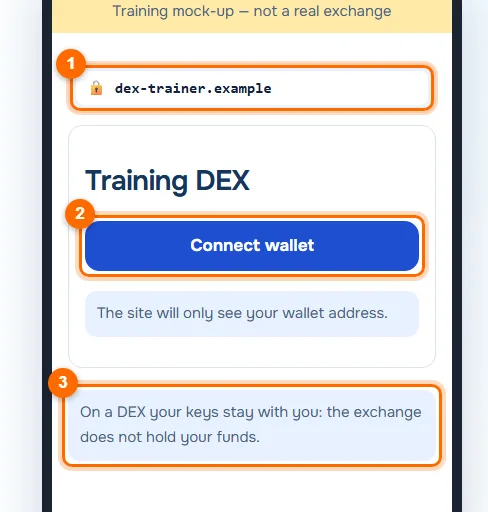
The practice exchange’s address, the connect button and a hint about keys. - 02
Read the signature request
The wallet shows which site is asking for a signature (number 1) and the message text (number 2): “Sign in to the site. This is not a transfer of funds.” The signature confirms that the address is yours.
Tap “Sign” (number 3) only if the site address is correct and the text is clear. Reject any unclear or suspicious request: nothing will happen.
Important. A signed operation cannot be undone. Scammers sometimes slip a transfer or a permission in under the guise of a “sign-in”, so read the text every time.
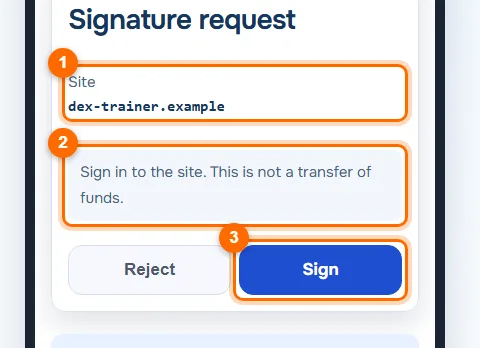
A signature request: the site, the message text and the buttons. - 03
Limit the token permission
Before the first trade, the site asks for permission to spend your USDC. Here the default is “unlimited” (number 1), and the warning (number 2) explains the risk: with this permission the contract can spend all of these tokens.
Set your own amount (number 3), exactly as much as the trade needs, 50 USDC in this example, and confirm only that.
Tip. An unlimited permission is convenient, but if the contract is hacked, you risk all of your tokens of that type.
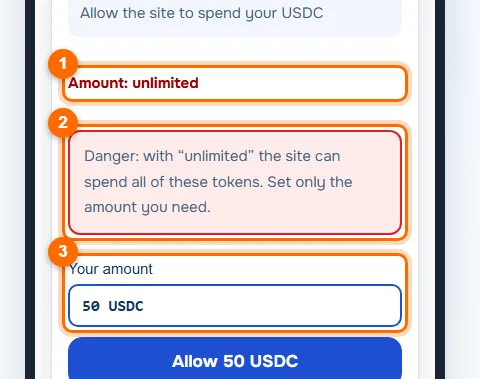
An unlimited permission, a warning and your own amount. - 04
Understand the risks of futures
A futures trade opens with margin (collateral) and leverage (number 1): here the margin is 50 USDC and the leverage is 2×. Leverage increases both profit and loss.
Before you confirm, read the liquidation price and the network and exchange fees (number 2). The liquidation price is the level at which the position is closed by force. The warning (number 3) says it plainly: a sharp price move can wipe out the whole margin.
Important. This lesson explains how the tools work and is not advice to trade. Do not risk an amount you are not ready to lose.
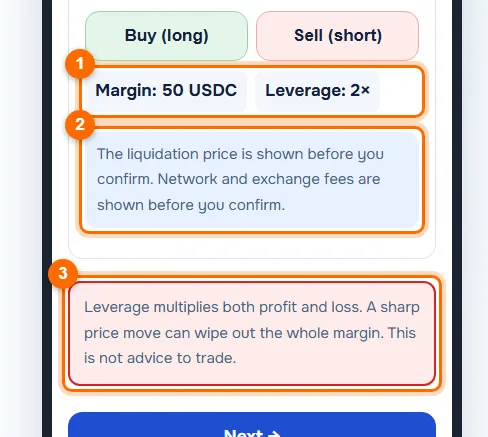
A trade: margin, leverage, liquidation price, fees and a warning. - 05
Disconnect the site and revoke the permission
When you finish, open your wallet settings. In the list of connected sites, tap “Disconnect” (number 1): the site will no longer see your address.
In the token permissions, find USDC “unlimited” and tap “Revoke” (number 2). Disconnecting a site and revoking a permission are different actions, and you need to do both.
Tip. Check your permissions once a month and revoke any you no longer use.
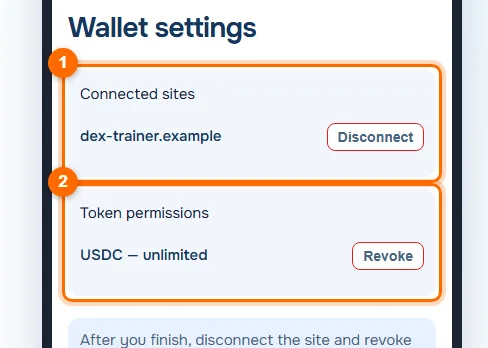
Wallet settings: connected sites and token permissions.
Common mistakes and what to do instead
Signing without reading the text
Every time, read which site is asking and what exactly it asks.
Leaving the “unlimited” permission in place
Set your own amount and revoke the permission after the trade.
Trading with high leverage “all in”
Start small: leverage increases losses too.
Simply closing the tab when you finish
Disconnect the site and revoke permissions in your wallet.
Test yourself
Answer in your head first, then reveal the answer.
1Does a sign-in signature transfer funds?Answer
No, it confirms that the address is yours. But read the text: another operation can be slipped in under the guise of a sign-in.
2Why is an “unlimited” permission dangerous?Answer
The contract can spend all your tokens of that type, including if it is hacked.
3Is closing the tab enough for a site to lose access?Answer
No. You need to disconnect the site in your wallet and separately revoke the token permissions.
In short
On a DEX the keys are yours, and so is the responsibility. Check the site address, read every signature, limit permissions to the amount you need, remember the risks of leverage and, when you are done, disconnect the site and revoke permissions.